

A Shopify email field on the product page lets you capture an email address at the exact moment a customer buys, without adding another checkout step. It is ideal for gift recipient addresses, notification sign-ups, and digital delivery. Shopify has no native product-page email input, so this guide covers the honest limits and how to add a validated email field for free with Optionify.
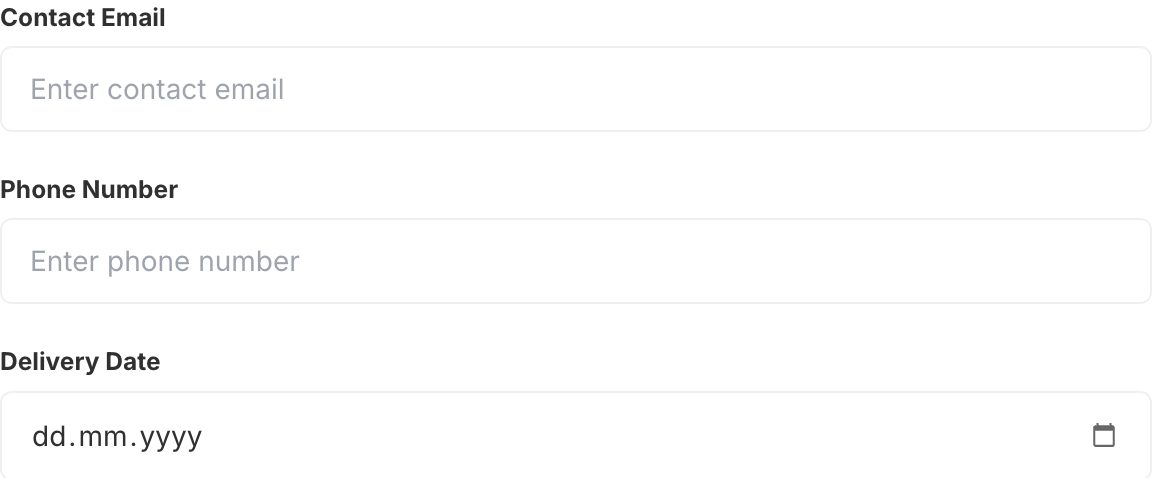 An email input option collecting a gift recipient address on the product page
Can I add an email field to a Shopify product page?
Not with native Shopify. Product pages have no email input, and while line item properties can hold text, they do not validate that the text is a real email format. That means typos slip through and you may only discover a broken address when a gift or digital delivery fails.
A dedicated email input option fixes this by validating format on the spot. The customer sees an error if the address is malformed, so the value you receive is far more likely to be usable.
How do I add an email input option with Optionify?
Optionify adds an Email input option type that renders on the product page and validates the address before add-to-cart. Setup takes a couple of minutes:
- Open Optionify and click Create option set.
- In the Option Set Editor, add an option and choose the Email input type.
- Label it clearly, for example "Gift recipient's email", and add help text explaining how the address will be used.
- Set whether it is required so customers must supply a valid address to continue.
- Assign the set to your products, set the status to Active, and save from Shopify's save bar.
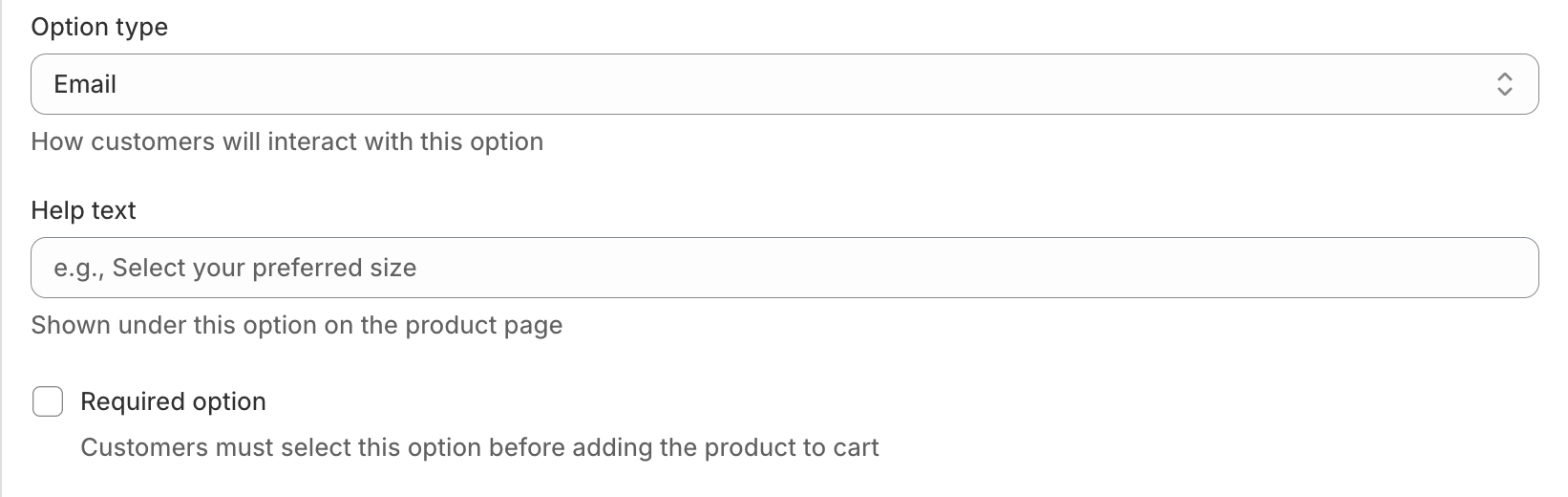 Set the label, help text, and required toggle for the email input in the Option Set Editor
Because Optionify works with option sets, one email field can apply to many products at once. See creating your first product option if this is your first set.
Does the email option validate the address?
Yes. The email input option checks that the customer's entry looks like a valid address, such as name@example.com, before they can add the item to their cart. It catches typos and empty submissions.
Be clear about what validation does and does not do. It confirms the format is correct. It cannot confirm the inbox exists, that the person owns it, or that mail will be delivered. Treat it as a strong first line of defense against bad data, not a guarantee of deliverability.
What can I use a product-page email field for?
Collecting an email at purchase supports several real workflows:
- Gift recipient email — send a digital gift or notify the recipient that something is on the way.
- Back-in-stock or pre-order alerts — capture who wants an update on a specific item.
- Digital delivery — collect where to send a downloadable product, license, or code.
- Order notifications — gather a secondary contact for someone other than the buyer.
Pair the email field with related inputs for a complete flow. Add a textarea option for a personal gift message, or a date picker to schedule when a gift should arrive.
Does Optionify send the emails for me?
No. This is important to be honest about. Optionify collects and stores the email on the order; it does not send any messages. The value is saved so you can act on it using your own tools.
Use the captured address in Shopify's own notifications, your email marketing platform, or your fulfillment process. For example, export the gift recipient addresses and load them into your gifting or delivery workflow. Optionify's job is accurate capture, not sending.
Where does the collected email appear in my order?
The email is saved to the Shopify order as a line item property. Open the order in your admin and the address appears next to the exact product the customer bought, ready for fulfillment, gift delivery, or export.
 The collected email appears as a line item property on the Shopify order
Because it is tied to the line item, multi-item orders stay organized. Each product that carries an email option keeps its own captured address.
Can I show the email field only when it is needed?
Yes. Use conditional logic so the email field appears only after a relevant choice. For example, show "Gift recipient's email" only when the customer toggles a gift switch option to on. This keeps standard orders clean and asks for an email only when it matters.
Conditional logic is configured on Optionify's visual flow canvas, which makes these show/hide rules quick to build without touching code.
Why the email field must show on your storefront
Optionify renders options through a theme app embed you enable in the theme editor. If the embed is disabled, your email input will not appear even when the option set is Active. Turning it on once activates every option set across your store. If the field is missing, start with the troubleshooting guide.
FAQ
Can I add an email field to a Shopify product page? Not natively. Product pages have no email input and line item properties do not validate format. A free app like Optionify adds a validated email input option.
Does the email option validate the address? Yes, it checks the format looks like a real email before checkout. It cannot confirm the inbox exists or that mail will be delivered.
Does Optionify send emails to the address? No. It collects and stores the email on the order. Use your own tools to send messages or deliver digital products.
Is the email field free? Yes. Optionify is free forever, including the email option, all 17 option types, conditional logic, and add-on pricing.
Where does the collected email appear? On the Shopify order as a line item property, next to the product the customer bought.
Get started with Optionify
Ready to collect emails right on your product page? Install Optionify from the Shopify App Store and add a free, validated email field in minutes.
Install Optionify on the Shopify App Store — free forever.
Explore related option types like text options for short inputs and textarea options for longer messages, or start with getting started with Optionify.
Need help? Check the Troubleshooting Guide or contact support.