

Shopify's built-in product options can't collect free text, so stores that need engraving, a monogram, or a gift message have to reach for an app. If you searched for how to add a custom text field to Shopify, this guide shows how to add a Shopify text input with a character limit — and optionally charge for the service — in a few minutes using Optionify, a free product options app.
How do I add a custom text field to Shopify?
Shopify variants only handle preset choices, not typed input. With Optionify, create an option set, add a Text input option, set a character limit if you need one, assign the set to your products, and enable the theme app embed. Customers can then type a name, message, or code directly on the product page.
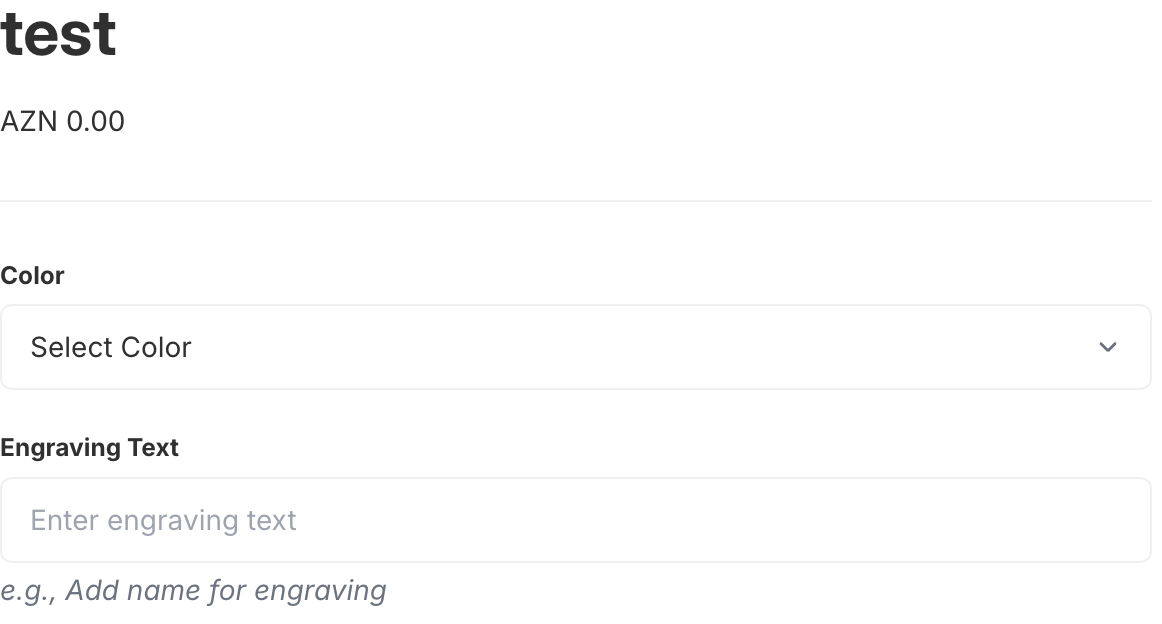 A Text input option collecting personalization text on a live product page
When should you use a text input?
Use a Text input for short, single-line text that's unique to each order and can't be a preset choice: a name, initials, an engraving line, a short gift message, or a reference code. Anything you couldn't reasonably list as a dropdown value belongs in a text field.
For longer, multi-line content like detailed instructions or a paragraph-length message, use a textarea instead. For a validated email address, use an email input.
Setting a character limit
Character limits are the most important setting for a text input, because personalization is usually physically constrained — only so many characters fit on a ring, a pendant, or a bracelet. A Text input option can enforce a maximum length so customers can't submit text that won't fit.
Match the limit to the product:
- Initials / monogram — 1–5 characters
- Jewelry engraving — 15–30 characters
- Names on apparel — 20–40 characters
- Short gift messages — 100–150 characters
Setting an accurate limit up front prevents a support ticket later, when a customer submits 60 characters for a space that fits 20.
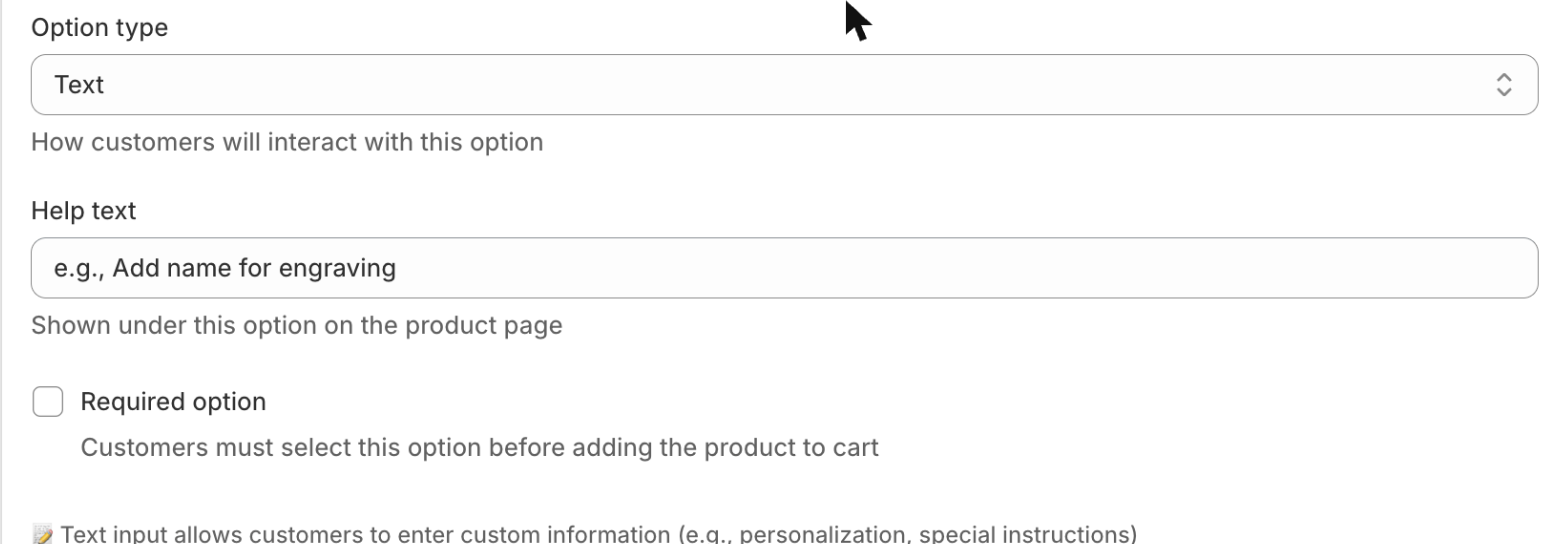 Configuring the Text input label, character limit, and required toggle in the Option Set Editor
How to add a custom text field in Optionify
- Click Create option set and name the set (e.g. "Engraving").
- Add an option and choose the Text input type.
- Enter the option label, such as "Engraving text" or "Name on jersey."
- Set a character limit that matches what physically fits.
- Add a price if personalization is a paid service (details below).
- Decide whether the field is required so customers can't skip it.
- Assign the set with the right assignment method — All Products, Tagged Products, Collections, or Individual Products.
- Set the set to Active and save with Shopify's save bar.
Options only appear on the storefront once the theme app embed is enabled in your theme editor. If the field isn't showing, check that first.
Can I charge for personalization?
Yes. A Text input option can carry an add-on price in one of two modes:
- Fixed — a set amount, e.g. "Engraving (+$15.00)."
- Percent — a percentage of the product price.
The charge is added when the customer fills in the field, and it carries to checkout through a hidden companion product — so it works with Buy it Now and Shop Pay too. See add-on pricing for how the total reaches the order. You can also use conditional logic to reveal the text field only after a customer chooses "Add engraving."
Does a custom text field create Shopify variants?
No. Typed text is unique to each order and isn't inventory, so it doesn't belong in variants at all. A Text input creates no SKUs and doesn't count against Shopify's 3-options-per-product limit — which stayed at 3 even after Shopify raised the variant ceiling to 2,048 in October 2025. Your Size and Color stay as variants; the engraving field lives alongside them without using a slot.
Where does the text appear after checkout?
Whatever the customer types is saved as a line item property on the Shopify order. Your fulfillment or production team sees the exact name, message, or engraving in the order details — no separate spreadsheet, no copy-and-paste from emails. Because the text travels with the order, print-on-demand and fulfillment integrations that read line item properties pick it up automatically.
Real use cases for text input options
Jewelry engraving. A jeweler adds an "Engraving text" field with a 20-character limit and a $15 add-on price, assigned to products tagged "engravable."
Monogramming. A leather-goods store collects 3-letter initials on bags and wallets with a strict 3-character limit.
Names on apparel. A sports store adds a "Name on jersey" field with a 30-character limit, assigned to the custom-jerseys collection.
Gift messages. A gift shop adds an optional "Gift message" field across all products so buyers can include a short note.
Each of these is one Text input option, assigned to the right products, with the exact text flowing straight into the order.
FAQ
How do I add a custom text field to Shopify? Shopify has no built-in text input for products. With Optionify, create an option set, add a Text input option, set a character limit if needed, assign it to your products, and enable the theme app embed.
Can I set a character limit on a Shopify text field? Yes. A Text input option can enforce a maximum length, essential for engraving and monograms where only so many characters fit. Set a limit that matches your product.
Can I charge for personalization or engraving? Yes. A Text input can carry a fixed amount or a percentage of the product price. The charge is added when the field is filled in and carries to checkout, including Buy it Now and Shop Pay.
Does a custom text field create Shopify variants? No. A Text input isn't a variant, so it never creates SKUs or counts against Shopify's 3-options-per-product limit.
Where does the customer's text appear after they order? The text is saved as a line item property on the Shopify order, visible to your fulfillment team in the order details.
Get started with Optionify
Ready to collect names, engraving, and personalization? Install Optionify — it's free, forever, with all 17 option types, conditional logic, and add-on pricing included.
Install Optionify on the Shopify App Store
New here? Start with creating your first product option, then compare textarea options for longer messages and email options for validated addresses.