

A Shopify multi-line text field lets customers write longer messages right on the product page, from gift notes to engraving text to detailed special instructions. Shopify's product pages do not include a multi-line input by default, so this guide shows how to add a textarea option for free with Optionify and use it well.
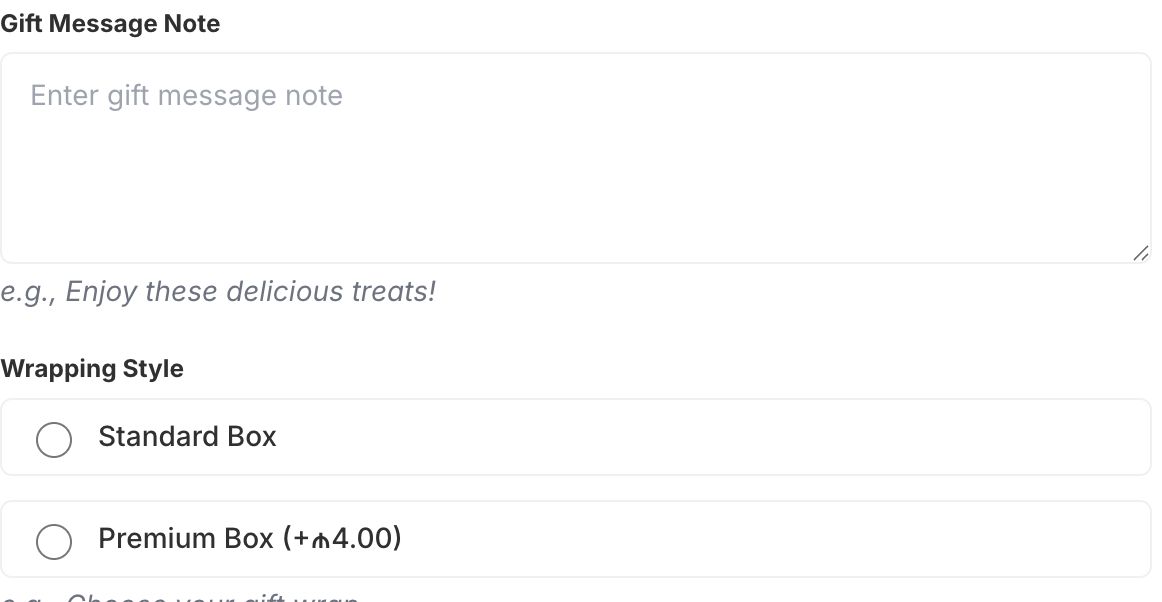 A Textarea option collecting a personalized gift message on the product page
How do I add a multi-line text field to a Shopify product?
Shopify's product pages have no multi-line text input out of the box. You can add short text through line item properties with theme code, but there is no easy, resizable box for a customer to type a full message before add-to-cart. That gap forces personalization requests into the order notes or, worse, into follow-up emails.
A dedicated textarea option solves it cleanly. Here is the setup in Optionify:
- Open Optionify and click Create option set.
- In the Option Set Editor, add an option and choose the Textarea type.
- Label it clearly, such as "Gift message" or "Engraving text".
- Add help text and, if you need it, a character limit so messages fit your card or product.
- Assign the set to your products, set the status to Active, and save from Shopify's save bar.
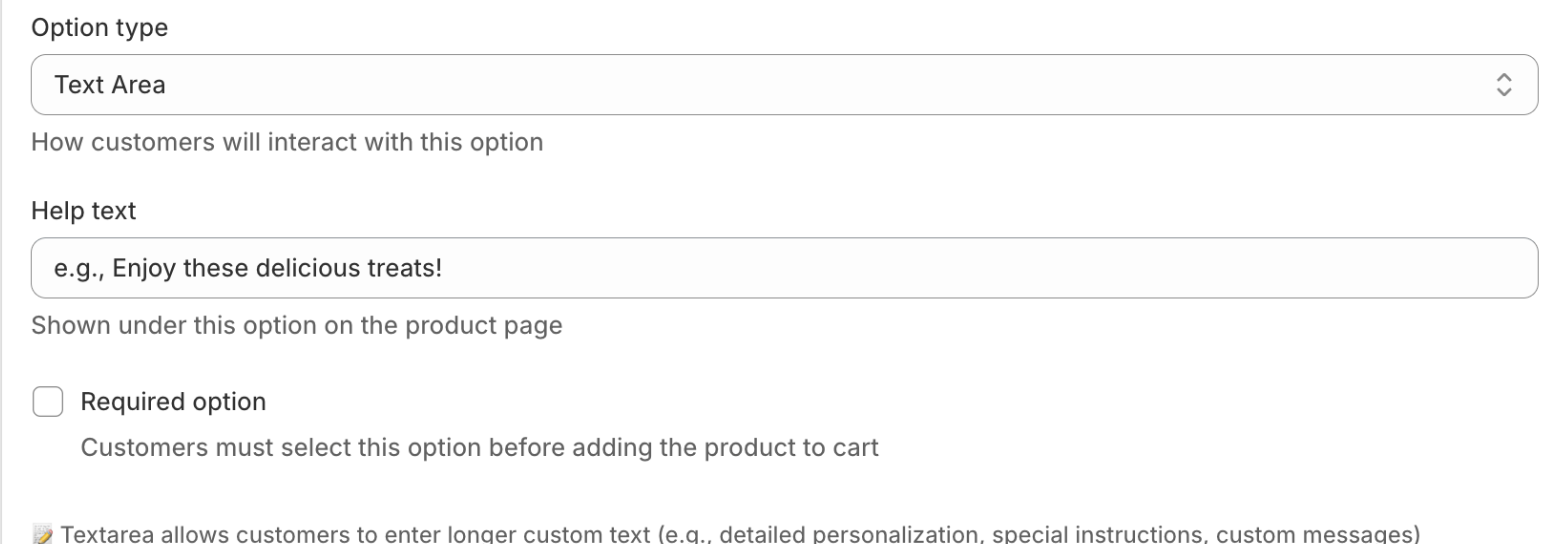 Set the label, help text, and character limit for a Textarea in the Option Set Editor
Because Optionify uses option sets, one textarea can apply to many products at once. See creating your first product option to get going.
What is the difference between a text and a textarea option?
A text option is a single line, best for names, initials, or short engraving. A textarea is multi-line and suits paragraphs like gift messages, delivery notes, or design briefs. Choose textarea whenever a customer might reasonably write more than one short line.
The rule of thumb: if the input is a few words, use a text option. If it is a sentence or a paragraph, use a textarea so customers can see and edit their whole message comfortably.
What can I use a textarea option for?
A multi-line field fits any longer, free-form input. Common uses include:
- Gift messages — a personalized note printed on a card included with the order.
- Engraving and personalization text — longer inscriptions that span multiple lines.
- Special instructions — delivery notes, dietary requirements, or handling requests.
- Design briefs — colors, style, and references for a custom-made product.
- Quote or event details — the specifics you need before you can fulfill.
Pair the textarea with other options for a full customizer. Add a file upload option so customers attach reference artwork alongside their written brief, or a date picker to schedule delivery.
Can I set a character limit on a textarea?
Yes. You can cap how much a customer types so their message fits your gift card, engraving plate, or production template. Setting a sensible maximum, and stating it in the help text, prevents oversized submissions that will not print or fit the physical space you have.
Match the limit to the real constraint. A gift card might hold a few hundred characters, while an engraving plate holds far fewer. Tell customers the limit up front so they write to fit rather than getting cut off later.
How do I write good help text and placeholders?
Clear guidance dramatically improves the quality of what customers submit. Use help text to state the purpose and any limit, and use the field to invite a real message rather than a vague "type here".
Good guidance sounds like: "Your message will be printed on a gift card included with the order. Up to 300 characters." Specific instructions reduce back-and-forth and mean fewer orders that need a correction before you can produce them.
Can I show the textarea only when it is relevant?
Yes. Use conditional logic so the textarea appears only after a relevant choice, keeping standard orders uncluttered. For example, reveal a "Gift message" textarea only when a customer turns on a gift wrap switch.
Conditional logic is built on Optionify's visual flow canvas, so you connect the trigger to the textarea without writing code. This is a cleaner experience than showing every field to every shopper.
Where does the customer's message appear after checkout?
The text is saved to the Shopify order as a line item property. Open the order in your admin and the full message appears next to the product the customer bought, ready for you to print, engrave, or hand to fulfillment.
 The customer's full message appears as a line item property on the Shopify order
Because the message is tied to its line item, multi-item orders stay organized. A customer ordering two personalized gifts with two different notes sends you two correctly matched messages.
Why the textarea must show on your storefront
Optionify renders options through a theme app embed you enable once in the theme editor. If the embed is off, your textarea will not appear even when the option set is Active. Enabling it activates every option set across your store. If the field is missing, start with the troubleshooting guide.
FAQ
How do I add a multi-line text field to a Shopify product? Shopify has no native multi-line input. Use a free app like Optionify: create an option set, add a Textarea option, and label it. It renders a resizable text box on the product page.
What is the difference between a text and a textarea option? Text is a single line for short input like names. Textarea is multi-line for paragraphs like gift messages and instructions.
Can I set a character limit? Yes. Cap the length so messages fit your card or product, and state the limit in the help text.
Is the textarea free? Yes. Optionify is free forever, including the Textarea, all 17 option types, conditional logic, and add-on pricing.
Where does the message appear? On the Shopify order as a line item property, next to the product the customer bought.
Get started with Optionify
Ready to collect longer messages right on your product page? Install Optionify from the Shopify App Store and add a free textarea in minutes.
Install Optionify on the Shopify App Store — free forever.
New to the app? Start with getting started with Optionify, then explore text options for short input and checkbox options for multiple choices.
Need help? Check the Troubleshooting Guide or contact support.