

Radio button options let a customer pick exactly one choice from a visible set — one fit, one finish, one shipping speed. If you searched for Shopify radio button options, this guide explains when radio beats a dropdown or checkbox, and how to build single-select choices with optional per-choice pricing in a few minutes using Optionify, a free product options app.
How do I add radio button options in Shopify?
Shopify's built-in options are limited to 3 per product and always create variants. With Optionify, create an option set, add a Radio buttons option, list each choice as a value with an optional add-on price, assign the set to your products, and enable the theme app embed. Customers then select exactly one choice on the product page.
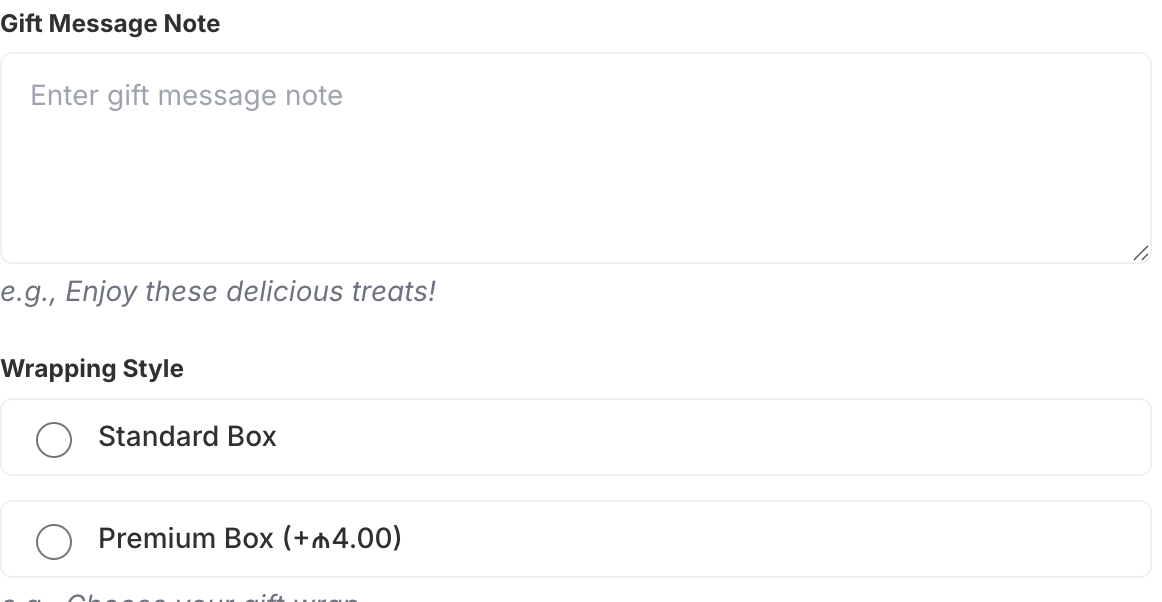 Single-select radio button options on a live product page, each with optional pricing
When should you use radio buttons?
Radio buttons suit mutually exclusive choices where only one answer makes sense: a single fit, a single finish, one shipping speed, one engraving location. Because every choice is visible at once, customers compare options and decide in a single tap — no menu to open, no scrolling.
Reach for radio buttons when you have roughly two to five short choices that benefit from being seen side by side. For longer lists, a dropdown keeps the page tidy.
Radio buttons vs. dropdown vs. checkbox
These three option types look similar but solve different problems:
- Radio buttons — select exactly one choice, all choices visible. Best for 2–5 options where comparison helps: fit, finish, shipping speed.
- Dropdown — select exactly one choice from a collapsed menu. Best for longer or familiar lists where space matters.
- Checkbox — select any number of stackable choices. Best for independent add-ons: extra battery, gift wrap, warranty.
If the answer to "can they pick more than one?" is yes, use a checkbox. If it's no and the list is short, use radio buttons.
How to set up radio button options in Optionify
- Click Create option set and name the set (e.g. "Shirt options").
- Add an option and choose the Radio buttons type.
- Enter the option label, such as "Select fit" or "Choose a finish."
- Add each choice as a value — "Men's," "Women's," "Unisex."
- Give any value an add-on price if it should cost extra (details below).
- Decide whether the option is required so customers can't skip it.
- Assign the set with the right assignment method — All Products, Tagged Products, Collections, or Individual Products.
- Set the set to Active and save with Shopify's save bar.
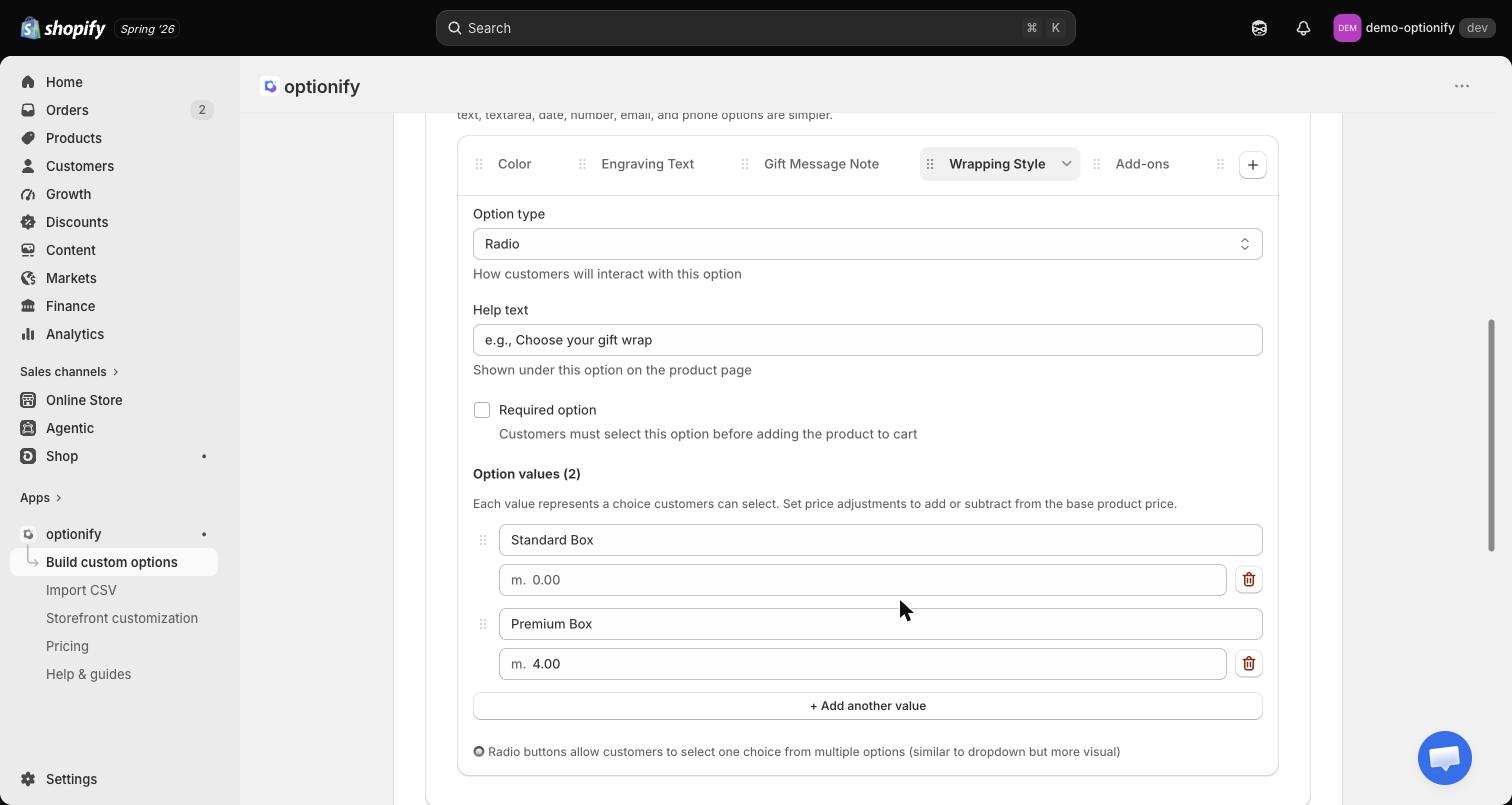 Adding radio values with per-choice fixed or percentage pricing in the Option Set Editor
Options only appear on the storefront once the theme app embed is enabled in your theme editor. If your radio buttons aren't showing, that's the first thing to check.
Can each radio choice have its own price?
Yes. Every radio value carries an optional add-on price in one of two modes:
- Fixed — a set amount, e.g. "Glossy finish (+$10.00)."
- Percent — a percentage of the product price, e.g. "Premium fit (+15%)."
Whichever choice the customer selects adds its charge to the total and carries to checkout through a hidden companion product — so it works with Buy it Now and Shop Pay too. See add-on pricing for how the totals reach the order.
Do radio options count as Shopify variants?
No. A Shopify variant is a stock-tracked combination like "Blue / Large," and each product is still capped at 3 options even after Shopify raised the variant ceiling to 2,048 in October 2025. Radio options live outside that system: they create no SKUs and don't count against the 3-option limit.
That means you can offer a "finish" choice, a "shipping speed" choice, and a personalization field on the same product without burning your three variant options on things that were never really inventory.
Real use cases for radio button options
Fit and finish. An apparel store offers "Men's," "Women's," and "Unisex" as radio choices, and a homeware brand lets buyers pick "Matte," "Satin," or "Glossy (+$10)."
Shipping speed. A store surfaces "Standard (free)," "Express (+$10)," and "Overnight (+$25)" as a single-select radio group, so customers choose one delivery speed at a glance.
Engraving location. A gift shop asks "Where should we engrave?" with "Front," "Back," or "Inside" — one choice only, no ambiguity for fulfillment.
Service tier. A furniture retailer offers "Standard assembly," "Premium assembly (+$40)," or "No assembly" as mutually exclusive choices.
Because the selected value is saved as a line item property on the order, your fulfillment team sees exactly which choice each customer made — no guesswork.
FAQ
How do I add radio button options in Shopify? With Optionify, create an option set, add a Radio buttons option, list each choice as a value with an optional add-on price, assign the set to your products, and enable the theme app embed. Customers then pick exactly one choice.
What is the difference between radio buttons and a dropdown? Radio buttons show every choice at once for quick comparison, ideal for two to five options. A dropdown hides choices in a menu to save space on longer lists. Both allow only one selection.
Can each radio button choice have its own price? Yes. Every value can carry a fixed amount or a percentage of the product price. The selected choice adds its charge to the total and carries to checkout, including Buy it Now and Shop Pay.
Do radio button options create Shopify variants? No. Radio options aren't variants, so they never create SKUs or count against Shopify's 3-options-per-product limit.
Should I use radio buttons or checkboxes? Use radio buttons when a customer must pick exactly one choice. Use checkboxes when they can select any number of stackable add-ons.
Get started with Optionify
Ready to add single-select radio button options? Install Optionify — it's free, forever, with all 17 option types, conditional logic, and per-choice pricing included.
Install Optionify on the Shopify App Store
New here? Start with creating your first product option, then compare dropdown options for longer lists and checkbox options for multi-select add-ons.