

Dropdown options turn a long list of choices into a clean, space-saving select menu. If you searched for Shopify dropdown options because you want a menu on your product page that Shopify's native variants can't give you, this guide covers when to use a dropdown, how it differs from a select box or radio buttons, and how to build one in a few minutes with Optionify — a free product options app.
How do I add a dropdown to a Shopify product?
Native Shopify only shows dropdowns for the three built-in variant options (like Size or Color). To add any extra dropdown without creating variants, install Optionify, create an option set, add a Dropdown option with your choices, assign it to the product, and enable the theme app embed. Your menu then appears on the storefront.
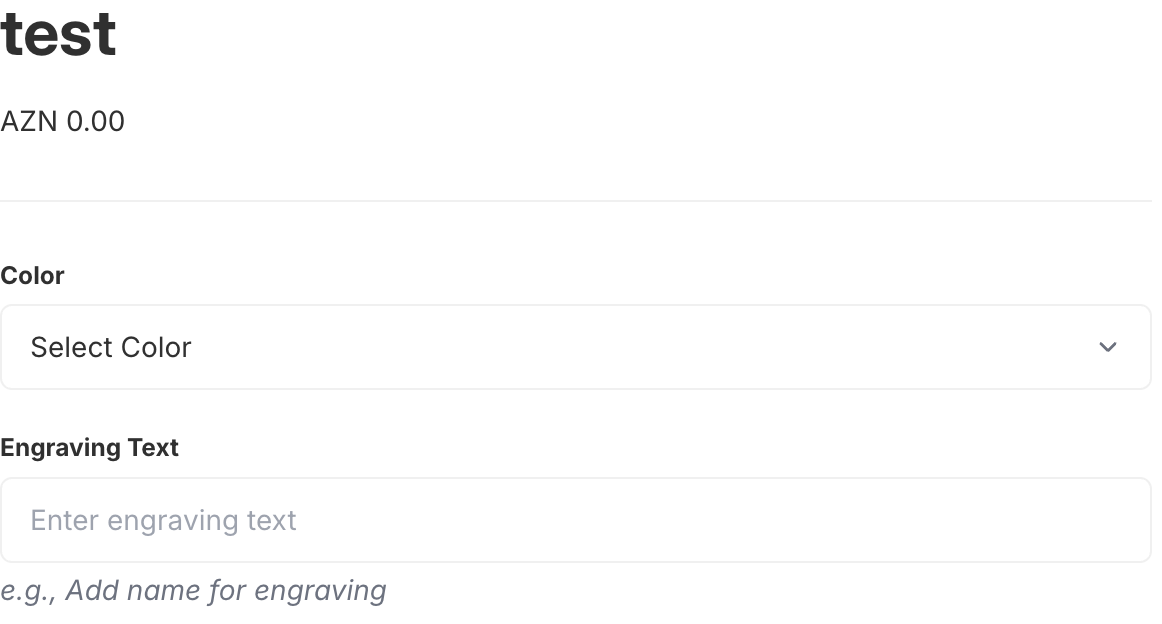 A dropdown option on a live product page, showing choices in a clean select menu
Why not just use Shopify variants?
Shopify variants are powerful for real SKUs, but they have a hard ceiling: only 3 options per product. That limit did not change when Shopify raised the variant cap to 2,048 in October 2025. Every variant combination is also a separate inventory item, which quickly becomes unmanageable for choices that don't need stock tracking — think gift-message styles, service tiers, or engraving positions.
Dropdown options in Optionify sit outside the variant system entirely. They don't create SKUs, don't count against the 3-option variant limit, and can be added in unlimited numbers per product. That makes them ideal for variant-free selections where you just need to capture a customer's choice.
Dropdown vs. select box vs. radio buttons
All three let a customer choose exactly one option. The right pick depends on list length and the look you want:
- Dropdown — uses the browser's native select control. Best for long lists (6+ choices) where space matters, like country, state, time slot, or model.
- Select box — a custom-styled dropdown that matches your theme consistently across browsers. Choose this when the native control looks out of place with your design.
- Radio buttons — show every choice at once, so the customer compares options side by side. Best for 2–5 choices where visibility drives the decision.
A quick rule: if the list is short and you want everything visible, use radio buttons. If the list is long or you want a compact page, use a dropdown or select box.
How to set up a dropdown in Optionify
Building a dropdown takes a few minutes in the Option Set Editor.
- From the app, click Create option set and give the set a name.
- Add an option and choose the Dropdown type.
- Enter the option label your customers see, such as "Choose a size" or "Select a delivery window."
- Add each value (the menu choices). You can reorder them so the most common choice sits near the top.
- Set an add-on price on any value that costs extra (see below).
- Choose where the set applies — All Products, Tagged Products, Collections, or Individual Products — using the assignment methods.
- Set the set to Active and save with Shopify's save bar.
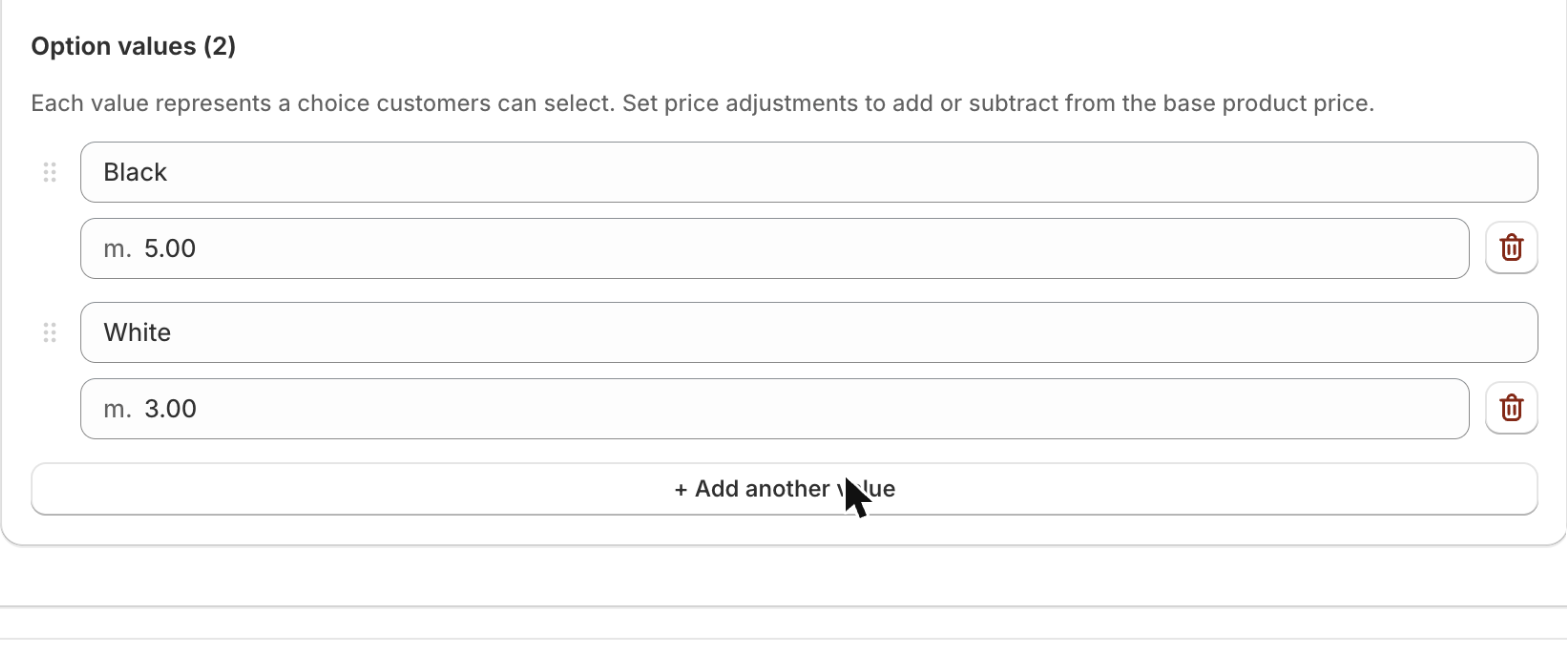 Configuring dropdown values and per-choice add-on pricing in the Option Set Editor
One more step matters: options only render if the theme app embed is enabled in your theme editor. If your dropdown doesn't appear on the storefront, that's the first thing to check.
Can each dropdown choice have its own price?
Yes — this is where dropdown options pay for themselves. Every value can carry an add-on price in one of two modes:
- Fixed — a set money amount, e.g. "Gift box (+$5.00)."
- Percent — a percentage of the product price, e.g. "Premium finish (+10%)."
The add-on is applied at the cart and carried to checkout through a hidden companion product, so it works even with Buy it Now and Shop Pay. You don't need to create a separate priced variant for each upsell. See pricing variants for a deeper look at how add-on charges flow through to the order.
Real use cases for dropdown options
Service tiers. A photography studio offers "Standard edit," "Advanced retouch (+$40)," and "Same-day delivery (+$75)" as a single dropdown, with no extra SKUs to manage.
Variant-free selections. A stationery shop lets buyers pick a font style from a 12-option dropdown. None of these need inventory, so variants would only get in the way.
Long predefined lists. Countries, states, time slots, or appointment windows all read better in a compact menu than as a wall of radio buttons.
Add-on upgrades. A furniture store adds a "Delivery service" dropdown — "Doorstep drop (free)," "Room of choice (+$30)," "White-glove setup (+$90)."
Show dropdowns only when relevant with conditional logic
You can keep product pages clean by revealing a dropdown only after a related choice is made. Optionify's conditional logic is configured on a visual flow canvas: for example, show a "Frame color" dropdown only when the customer first selects "Framed print." This keeps irrelevant menus hidden and reduces decision fatigue.
FAQ
How do I add a dropdown to a Shopify product? Native Shopify only offers dropdowns for the three built-in variant options. To add extra dropdowns without variants, install Optionify, create an option set, add a Dropdown option with your choices, assign it to the product, and enable the theme app embed.
Can a Shopify dropdown add to the price? Yes. Each choice can carry a fixed or percentage add-on price. The charge reaches checkout via a hidden companion product, so it works with Buy it Now and Shop Pay.
What is the difference between a dropdown and a select box? Both let customers pick one choice from a menu. Dropdown uses the native browser control; Select box is a custom-styled version that matches your theme consistently across browsers.
Do dropdown options count against Shopify's variant limit? No. Optionify dropdowns aren't Shopify variants, so they don't count against the 3-options-per-product limit or the 2,048 variant cap.
Will dropdown selections show in the order? Yes. Every selection is saved as a line item property on the order, so fulfillment sees exactly what the customer chose.
Get started with Optionify
Ready to add dropdown options to your Shopify store? Install Optionify — it's free, forever, with all 17 option types and conditional logic included.
Install Optionify on the Shopify App Store
New to the app? Start with creating your first product option, then explore checkbox options for multi-select add-ons.